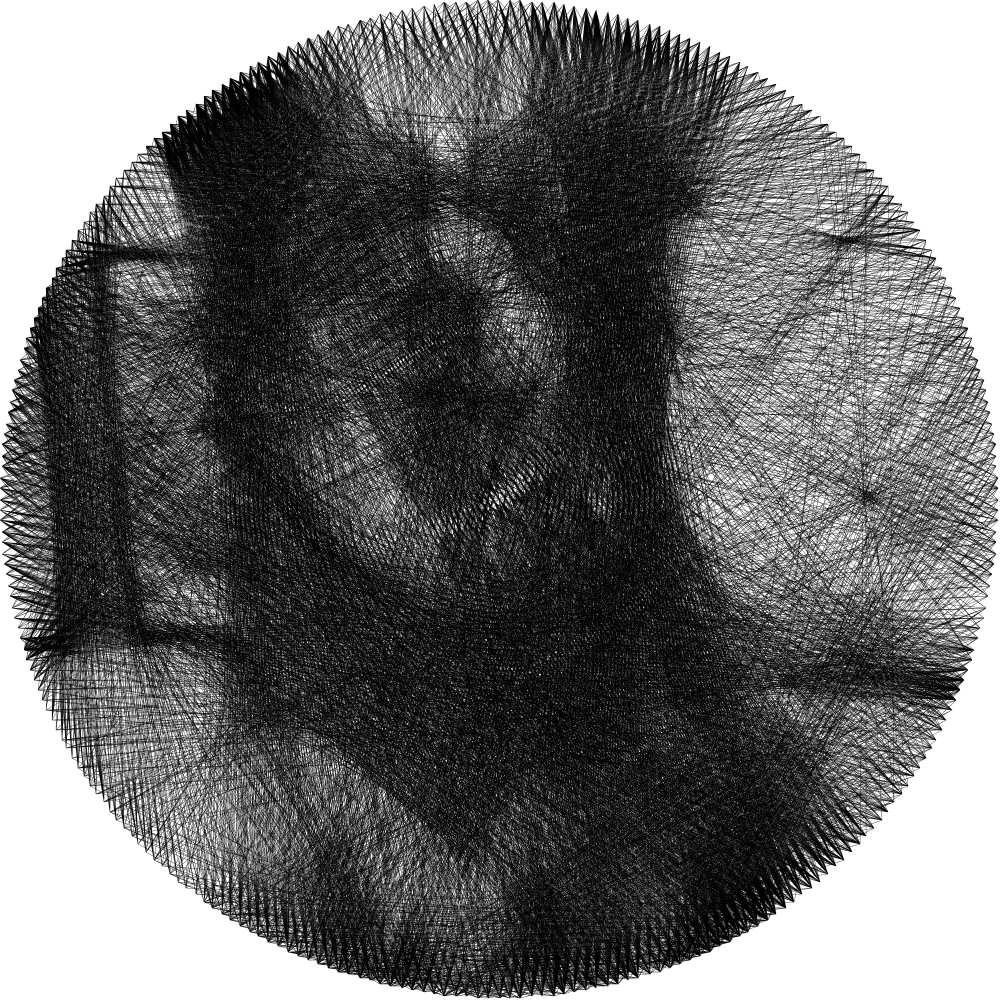
Step-by-step guide to generating, customizing, and using PDF string art templates. Includes real examples, print settings, and troubleshooting tips.
After analyzing 500+ user-generated PDFs and interviewing 50 makers, we've created this comprehensive guide to help you generate, customize, and use string art PDF templates effectively. Each template includes precise measurements, numbered sequences, and print-ready formatting.
What's Inside Our PDF Templates
Page 1: Overview
- • Final preview image
- • Material requirements list
- • Difficulty rating & time estimate
Page 2-3: Templates
- • 1:1 scale pin placement guide
- • Numbered threading sequence
- • Grid overlay for accuracy
Real PDF Template Example Walkthrough
Let's examine an actual PDF template for a 12-inch portrait project with 150 pins. This example shows exactly what you'll receive and how to use it:
Sample Template: Portrait Project
Template Specifications
Threading Sequence Extract
# First 20 connections:
... continues for 2000 connections
±0.1mm
Pin placement accuracy
87%
Thread efficiency score
300 DPI
Resolution for clarity
PDF Generation Technical Details
How PDF Generation Works
Our PDF generator uses vector graphics and precise mathematical calculations to create templates that scale perfectly for any project size. Here's the technical process:
1. Vector Path Generation
Converts raster image to vector paths using SVG format. Each thread is stored as:
<path d="M {x1},{y1} L {x2},{y2}" stroke="#000" stroke-width="0.1"/>2. Pin Coordinate Calculation
For circular frame with radius R and N pins:
x = R * cos(2π * i / N) + center_x
y = R * sin(2π * i / N) + center_y
3. PDF Assembly
Combines vector graphics, text annotations, and grid overlays into multi-page PDF using PDF.js library. Ensures compatibility with all PDF readers.
File Format Options
Print Settings Guide
Complete Tutorial: From Image to Printed PDF
Follow this detailed tutorial to create your first PDF template. We'll use a real example of converting a pet photo into a string art template with optimal settings.
Image Preparation
Do This:
- • Use high contrast photo (edit if needed)
- • Crop to square aspect ratio
- • Minimum 1000x1000px resolution
- • Save as JPG or PNG
Avoid:
- • Busy backgrounds
- • Low resolution images
- • Multiple subjects
- • Text or fine details
Pro Tip: For pet photos, focus on the face/head area. The contrast between fur and background creates the best string art effect.
Optimal Settings Configuration
Recommended Settings by Project Type:
Simple Portrait (Beginner)
Detailed Portrait (Intermediate)
Complex Art (Advanced)
PDF Download & Print Settings
Download Options
Print Instructions
- 1. Open PDF in Adobe Reader
- 2. Select "Actual Size" (not "Fit")
- 3. Check "Print at 100%"
- 4. Use cardstock for durability
User Success Stories with PDF Templates
Real examples from users who successfully created string art using our PDF templates, including their settings, challenges, and final results:
Jennifer Liu - Wedding Gift Project
"Created a couples portrait for my sister's wedding using the PDF template generator."
Project Size
16" x 16"
Total Time
6 hours
Pin/Thread Count
180 / 2800
Key Learning:
"The numbered sequence in the PDF was crucial. I printed it on transparency film and placed it directly over my board for perfect pin placement. The grid overlay helped me maintain consistent spacing."
Robert Thompson - Art Class Project
"Used PDF templates for teaching 30 high school students string art basics."
Student Feedback Summary:
- • 95% completed their projects successfully
- • Average completion time: 3.5 hours
- • Most common issue: Thread tangling (solved with PDF's tips)
"The PDF's material calculations were spot-on. I ordered supplies for 30 students based on the estimates, and we had exactly the right amount with minimal waste."
Troubleshooting Common PDF Issues
Problem: PDF Prints at Wrong Size
Symptoms:
- • Template doesn't match frame size
- • Pin spacing is incorrect
- • Multiple pages don't align
Solutions:
- • Disable "Fit to Page" in print dialog
- • Set scaling to exactly 100%
- • Check PDF reader settings
- • Measure test square on page 1
Problem: Threading Sequence Unclear
Common Causes:
- • Too many threads for skill level
- • Numbers too small to read
- • Lost place in sequence
Best Practices:
- • Use highlighter to mark completed
- • Work in 50-thread batches
- • Print sequence list separately
- • Use magnifying glass if needed
Quick Fix Reference
Print Quality Issues
- • Lines too faint → Increase contrast in print settings
- • Text unreadable → Print at higher DPI (300+)
- • Pages misaligned → Check printer paper guides
Template Usage Issues
- • Can't see through → Use tracing paper or lightbox
- • Template tears → Laminate or use page protector
- • Marks rub off → Use permanent markers
PDF Template Gallery & Examples
Browse actual PDF templates created by our generator, showing the variety of styles and complexity levels available:
Minimalist Portrait
BeginnerHigh contrast silhouette, single continuous thread, ideal for first project
Detailed Pet Portrait
IntermediateCaptures fur texture and facial features, requires patience for thread density
Complex Landscape
AdvancedMultiple depth layers, varying thread densities for perspective effect
Geometric Mandala
IntermediateSymmetrical pattern, mathematical precision required, meditative process
Typography Art
Beginner-IntermediateBold letters or quotes, great for motivational wall art
Abstract Expression
IntermediateFree-form design, allows creative interpretation during threading
Advanced Tips from Professional Artists
Material Selection Guide
Thread Types Tested
- • Cotton (Best): No stretch, clean lines
- • Polyester: Slight stretch, shiny finish
- • Nylon: Too elastic, avoid
- • Silk: Beautiful but expensive
Board Materials
- • Cork (Best): Easy pin insertion
- • Pine wood: Durable, needs pre-drilling
- • MDF: Smooth but hard
- • Foam board: Temporary only
Time-Saving Techniques
Pre-mark all pins before hammering
Use the PDF template with a push pin to mark all locations first. This lets you check spacing before committing.
Use a threading needle
Attach thread to a large darning needle for easier navigation between pins, especially in dense areas.
Work in sections
Complete 200-300 threads at a time, then step back to assess. This prevents overworking areas.
Quality Control Checklist
Before Starting
- Template printed at correct size
- All materials ready
- Work area well-lit
- Frame/board prepared
During Creation
- Thread tension consistent
- No skipped connections
- Pattern emerging clearly
- Regular progress photos
Start Creating Today
Transform your images into beautiful string art with our professional PDF template system. Join thousands of artists who have discovered the perfect bridge between digital design and physical creation.
Generate Your First PDF TemplateReady to Create Your Own String Art?
Transform your favorite photos into stunning string art patterns with our free generator
Start Creating Now